Welcome to the ultimate guide on Azure Active Directory! If you’re managing user identities in the cloud, this is your go-to resource for mastering one of Microsoft’s most powerful identity platforms.
What Is Azure Active Directory?

Azure Active Directory (Azure AD) is Microsoft’s cloud-based identity and access management service, designed to help organizations securely manage user identities and control access to applications and resources. Unlike traditional on-premises Active Directory, Azure AD operates in the cloud, making it ideal for modern hybrid and remote work environments.



Core Purpose of Azure AD
The primary goal of Azure Active Directory is to provide secure authentication and authorization across cloud and on-premises applications. It enables single sign-on (SSO), multi-factor authentication (MFA), and conditional access policies to ensure only authorized users gain access to corporate resources.
- Centralized identity management
- Secure access to SaaS apps like Office 365, Salesforce, and Dropbox
- Integration with on-premises directories via Azure AD Connect
“Azure Active Directory is the backbone of identity in the Microsoft cloud ecosystem.” — Microsoft Documentation
Differences Between Azure AD and On-Premises AD
While both systems manage identities, they serve different architectures. Traditional Active Directory is built for Windows domain networks using LDAP and Kerberos protocols, whereas Azure AD is optimized for HTTP-based cloud applications and REST APIs.
- Azure AD uses OAuth 2.0, OpenID Connect, and SAML for authentication
- No concept of domains or organizational units (OUs) like in on-prem AD
- Supports modern authentication methods such as passwordless login and biometrics
Understanding these distinctions is crucial when planning a migration or hybrid setup. For more details, visit Microsoft’s official documentation on Azure AD.
Key Components of Azure Active Directory
To fully leverage Azure Active Directory, it’s essential to understand its core components. These building blocks form the foundation of identity management in the cloud.
Users and Groups
In Azure AD, users represent individuals who need access to resources. Each user has a unique identity and can be assigned roles and permissions. Groups are collections of users that simplify management by allowing bulk assignments of licenses, apps, and policies.
- Types of users: Cloud-only, synchronized from on-premises, guest (B2B)
- Group types: Security groups and Microsoft 365 groups
- Dynamic groups that auto-update membership based on rules
Dynamic groups are especially powerful for automating access control. For example, you can create a group that automatically includes all users in the “Marketing” department, ensuring they always have the right access without manual intervention.
Applications and Service Principals
Azure Active Directory allows you to register applications so they can securely interact with other services. When an app is registered, Azure AD creates a service principal—an identity for the app within your tenant.
- Used for SSO and API access
- Supports client credentials flow for daemon apps
- Can be configured with app roles and permissions
For developers, this means seamless integration with Microsoft Graph API or third-party services. Learn more at Azure AD Application and Service Principal Overview.
Roles and Administrative Units
Azure AD provides role-based access control (RBAC) to delegate administrative responsibilities. Instead of giving full global admin rights, you can assign granular roles like User Administrator, Helpdesk Admin, or Conditional Access Administrator.
- Over 80 built-in roles available
- Custom roles can be created for specific needs
- Administrative units allow scoping roles to specific departments or regions
This reduces the risk of privilege misuse and supports least-privilege security models.
Authentication Methods in Azure Active Directory
Authentication is at the heart of Azure Active Directory. With evolving threats and remote work trends, Azure AD offers a variety of secure sign-in options.
Password-Based Authentication
While passwords are still widely used, Azure AD enhances them with policies like complexity requirements, expiration rules, and smart lockout mechanisms to prevent brute-force attacks.
- Self-service password reset (SSPR) available for users
- Password hash synchronization or pass-through authentication options
- Seamless integration with on-premises AD via Azure AD Connect
Organizations can choose between synchronizing password hashes or using real-time validation through pass-through authentication, depending on their security and infrastructure needs.
Multi-Factor Authentication (MFA)
Azure AD Multi-Factor Authentication adds an extra layer of security by requiring users to verify their identity using a second method—such as a phone call, text message, or authenticator app.
- Available in Azure AD Premium P1 and P2 licenses
- Can be enforced per user or via conditional access policies
- Supports app passwords for legacy clients that don’t support MFA
According to Microsoft, enabling MFA blocks over 99.9% of account compromise attacks. It’s one of the most effective security controls available today.
Passwordless Authentication
Azure Active Directory supports passwordless sign-in methods, including Windows Hello for Business, FIDO2 security keys, and the Microsoft Authenticator app.
- Eliminates phishing risks associated with passwords
- Provides faster and more convenient logins
- Fully supported in hybrid and cloud-only environments
Passwordless authentication is not just a trend—it’s the future of secure identity. For implementation guidance, check out Microsoft’s guide to passwordless authentication.
Conditional Access and Security Policies
Conditional Access is one of the most powerful features of Azure Active Directory. It allows organizations to enforce access controls based on specific conditions such as user location, device compliance, or sign-in risk.
How Conditional Access Works
Conditional Access policies evaluate each sign-in attempt against a set of rules. If the conditions are met, the policy enforces actions like requiring MFA, blocking access, or prompting for device compliance.
- Policies consist of users/groups, cloud apps, conditions, and access controls
- Evaluated in real-time during authentication
- Can be tested in report-only mode before enforcement
For example, you can create a policy that requires MFA for all users accessing email from outside the corporate network.
Identity Protection and Risk-Based Policies
Azure AD Identity Protection uses machine learning to detect risky sign-ins and compromised users. It integrates with Conditional Access to automatically respond to threats.
- Identifies anomalies like sign-ins from unfamiliar locations
- Flags leaked credentials found on the dark web
- Triggers automated remediation workflows
With Identity Protection, organizations can move from reactive to proactive security. More information is available at Azure AD Identity Protection documentation.
Device Compliance and Intune Integration
Azure AD can integrate with Microsoft Intune to enforce device compliance policies. Only compliant devices—those meeting security standards like encryption and OS version—can access corporate resources.
- Compliance policies defined in Intune
- Enforced via Conditional Access
- Supports mobile devices, laptops, and desktops
This integration is critical for zero-trust security models, ensuring that access is granted only from trusted and secure endpoints.
Hybrid Identity with Azure AD Connect
For organizations with existing on-premises infrastructure, Azure Active Directory offers seamless integration through Azure AD Connect.
What Is Azure AD Connect?
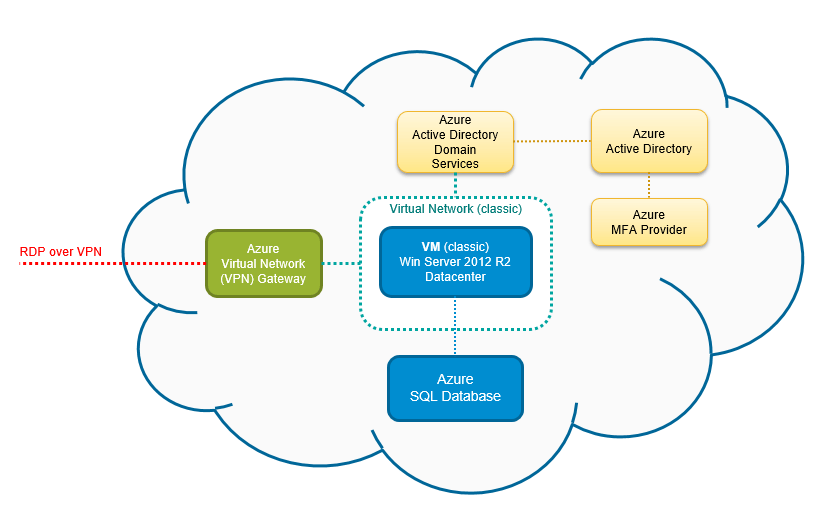
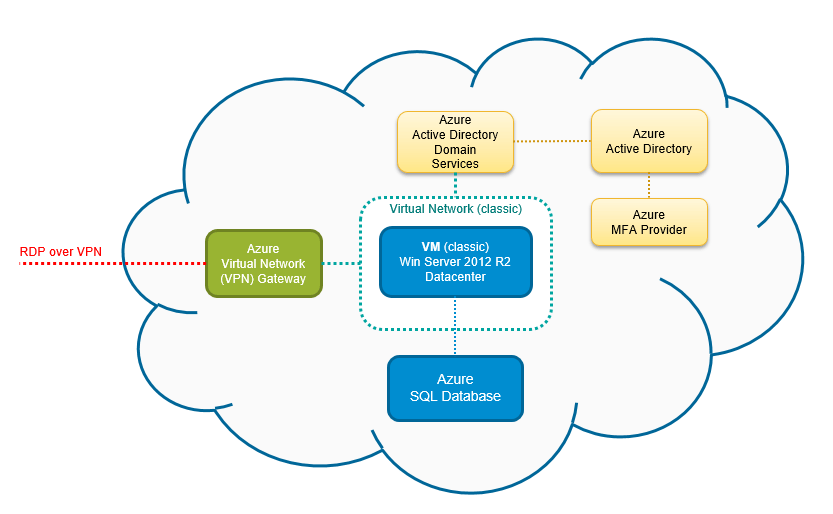
Azure AD Connect is a tool that synchronizes user identities from on-premises Active Directory to Azure AD. This enables users to use the same credentials for both on-prem and cloud resources.
- Supports password hash synchronization, pass-through authentication, and federation
- Can sync users, groups, contacts, and passwords
- Provides health monitoring and alerting
It’s the bridge between legacy systems and modern cloud identity management.
Synchronization Options Compared
Organizations can choose from several synchronization methods based on their architecture and security requirements.
- Password Hash Synchronization (PHS): Syncs password hashes to Azure AD; simple to set up
- Pass-Through Authentication (PTA): Validates passwords against on-prem AD in real time; no password hashes stored in the cloud
- Federation (AD FS): Uses on-premises federation servers for SSO; offers more control but higher complexity
Most organizations today prefer PTA due to its balance of security and simplicity. Learn more at Azure AD Connect overview.
Password Writeback and Self-Service Features
Azure AD Connect supports password writeback, allowing users to change or reset their on-premises passwords from the cloud (e.g., via the My Account portal).
- Enables self-service password reset without on-prem tools
- Requires PHS or PTA to be enabled
- Improves user experience and reduces helpdesk load
This feature is especially valuable in remote work scenarios where users may not have direct access to domain controllers.
Azure Active Directory B2B and B2C Scenarios
Azure Active Directory isn’t just for internal employees. It also supports external collaboration and customer-facing applications through B2B and B2C capabilities.
Azure AD B2B Collaboration
Azure AD B2B allows organizations to securely invite external users (partners, vendors, contractors) to access corporate applications and resources.
- Guest users are added as “external” users in your directory
- They sign in with their own work or personal accounts
- Access can be managed via groups and Conditional Access
This eliminates the need to create separate accounts while maintaining security. For example, a marketing agency can collaborate with a client’s team on a shared SharePoint site without compromising internal security.
Azure AD B2C for Customer Identity
Azure AD B2C is a separate service designed for managing customer identities in consumer-facing applications.
- Supports social logins (Google, Facebook, Apple)
- Customizable sign-up and sign-in experiences
- Scalable to millions of users
Unlike standard Azure AD, B2C is optimized for high-volume, low-trust scenarios like e-commerce or mobile apps. Visit Azure AD B2C documentation for implementation details.
Invitation and Access Management
Managing external access in Azure AD involves sending invitations, tracking guest activity, and enforcing policies.
- Automated guest invitation workflows
- Access reviews to periodically audit external user access
- Integration with Microsoft Purview for compliance
These tools help maintain governance while enabling collaboration.
Licensing and Pricing Tiers for Azure AD
Azure Active Directory comes in several editions, each offering different features and capabilities. Choosing the right tier is critical for balancing cost and functionality.
Free Edition
The Free edition is included with most Microsoft 365 subscriptions and provides basic identity and access management.
- User and group management
- Basic SSO to SaaS apps
- 1 GB of directory storage
Suitable for small businesses or organizations just starting with cloud identity.
Premium P1 and P2
Azure AD Premium P1 and P2 offer advanced security and management features.
- Premium P1: Includes Conditional Access, self-service password reset, and hybrid identity
- Premium P2: Adds Identity Protection, access reviews, and privileged identity management
- Required for many enterprise security features
Most enterprises require at least P1 to implement zero-trust principles effectively.
How to Choose the Right Plan
When selecting a plan, consider your organization’s size, security requirements, and hybrid needs.
- Small businesses: Free or P1
- Mid-sized companies with MFA and Conditional Access: P1
- Enterprises with advanced threat detection: P2
- Customer-facing apps: Consider Azure AD B2C (separate pricing)
For detailed pricing, visit Azure AD pricing page.
Best Practices for Managing Azure Active Directory
Effective management of Azure Active Directory requires more than just setup—it demands ongoing governance and optimization.
Implement Role-Based Access Control
Avoid assigning Global Administrator roles broadly. Instead, use built-in roles or create custom ones to follow the principle of least privilege.
- Assign roles based on job function
- Use administrative units to limit scope
- Regularly review role assignments
This minimizes the risk of insider threats and accidental misconfigurations.
Enable Multi-Factor Authentication for All Admins
Administrative accounts are prime targets for attackers. Enforce MFA for all admin roles, ideally using phishing-resistant methods like FIDO2 keys.
- Use Conditional Access to enforce MFA
- Consider requiring MFA for all users
- Monitor sign-in logs for suspicious activity
Microsoft reports that MFA blocks 99.9% of account compromise attacks—making it non-negotiable for security.
Regularly Audit and Review Access
Over time, users accumulate unnecessary access. Use Azure AD’s access reviews to periodically validate who should have access to what.
- Schedule quarterly reviews for sensitive apps
- Automate approval workflows
- Integrate with identity governance solutions
This ensures compliance and reduces the attack surface.
What is Azure Active Directory?
Azure Active Directory is Microsoft’s cloud-based identity and access management service that enables secure user authentication and resource access across cloud and on-premises applications.
How does Azure AD differ from on-premises Active Directory?
Azure AD is cloud-native and uses modern protocols like OAuth and OpenID Connect, while on-premises AD relies on LDAP and Kerberos. Azure AD focuses on web-based authentication and does not use domains or OUs like traditional AD.
What is the difference between Azure AD B2B and B2C?
Azure AD B2B enables secure collaboration with external partners by inviting them as guests, while Azure AD B2C is designed for managing customer identities in consumer-facing applications with support for social logins and customizable user journeys.
Do I need Azure AD Premium to use Conditional Access?
Yes, Conditional Access is only available in Azure AD Premium P1 and P2 editions. The Free edition does not include this feature.
Can Azure AD replace on-premises Active Directory?
While Azure AD can handle cloud identity management, it doesn’t fully replace on-premises AD for legacy applications that rely on domain services. Most organizations use a hybrid approach with Azure AD Connect for synchronization.
In conclusion, Azure Active Directory is a cornerstone of modern identity management. From secure authentication and conditional access to hybrid integration and external collaboration, it empowers organizations to embrace the cloud securely. By understanding its components, leveraging advanced features like MFA and Identity Protection, and following best practices, businesses can build a robust, scalable, and secure identity foundation. Whether you’re a small startup or a global enterprise, Azure AD offers the tools you need to protect your digital assets in today’s evolving threat landscape.
Recommended for you 👇
Further Reading: